My First City
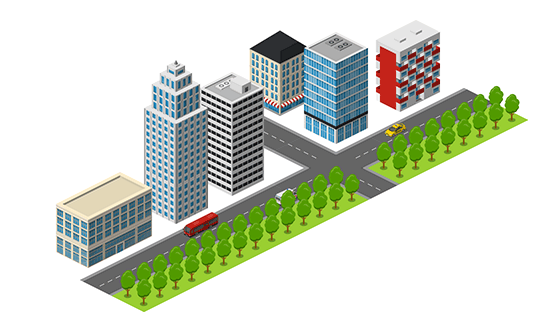
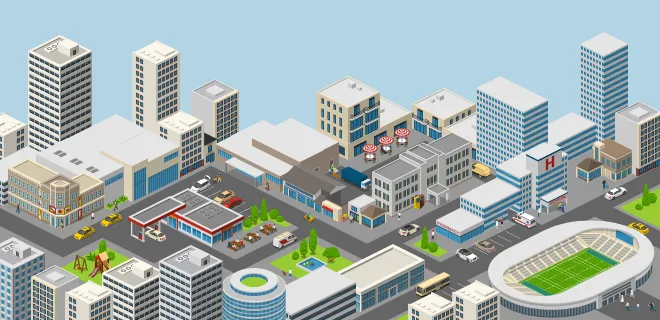
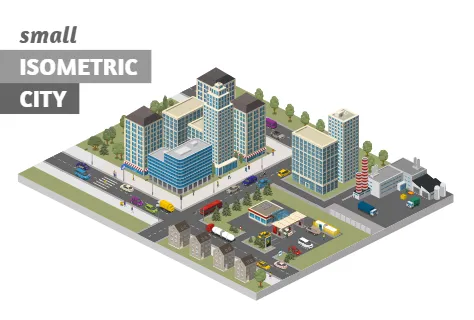
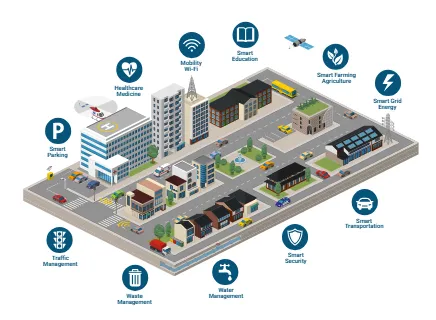
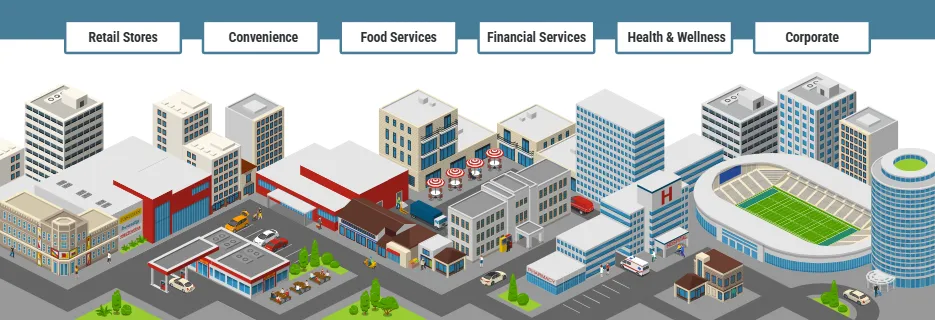
Let's create your first model of a city that contains roads, buildings, trees and vehicles.
Our unique online designer with thousands of icons allows to create illustrations by yourself. It's easy and free to try.
What you can create using Icograms Designer
Topic: City Illustration
Objective: Students will learn how to design a city using Icograms Designer by adding roads, buildings, trees, and vehicles to create a well-organized layout.
Elements: Roads, buildings, trees, vehicles
Introduction In this lesson we want to show you how to create a simple model of a city.
First of all we will show you how to create a road grid, then how to add buildings, trees and vehicles. Some of the buildings we will make higher by combining two or more buildings together. We will also show you some simple tricks that will help speed up the work.
Step-by-Step Activity
Step 1: Open Icograms Designer
Step 2: Add roads
Find “Roads” in the left toolbar. Select a straight road, curved road, or intersection. Drag and drop the roads to combine them into a city layout.
Step 3: Place buildings
Find “Buildings” in the left toolbar.
Select different types: houses, apartments, offices, shops, or schools. Drag them onto the map and place them next to the roads.
Step 4: Add trees and parks
Find “Nature” and select trees, bushes, and parks. Place trees next to the buildings and roads to make your city greener.
Step 5: Insert vehicles
Find “Vehicles” (cars, buses, bicycles, or trucks). Drag them onto the roads to bring your city to life
Wrap-Up & Discussion Why do roads need to connect in a city? What types of buildings does every city need? How does adding trees and parks help a city? Let students present their cities to the class and describe their designs.
How to work with Icograms Designer
You can start your project from scratch or customize one of our templates.
To get started from scratch
- Open Icograms Designer
- Drag and drop icons to the work area
- Utilize clone tools and copy/paste functions to increase efficiency
- Move, resize, and recolor icons to find the best solution
- Add text and symbols to enhance your design.
- Upload your own graphics if needed
- Export the created graphics
To get started from a template
- Choose a suitable template
- Drag and drop additional graphics if necessary
- Insert your own text using text boxes
- Customize your design by changing colors, fonts, and icons
- Upload your own graphics if needed
- Export the created graphics
My First City related Templates